How to rename Spaces on Mac
The direct answer for Mission Control, Desktop 1/Desktop 2 labels, workarounds, and focused naming tools.
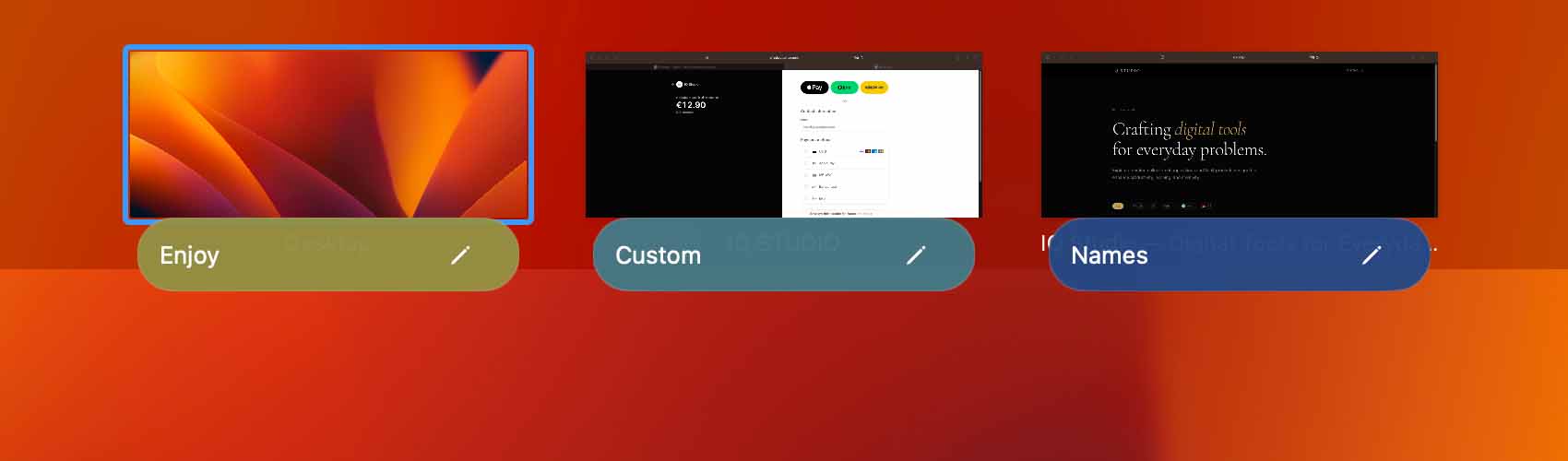
If you use several macOS Spaces, the default Desktop 1, Desktop 2, and Desktop 3 labels become hard to trust.
Apple still does not provide a built-in way to rename normal Mission Control desktops, so the right answer depends on whether you want a quick workaround or real labels.
Short answer
- macOS cannot rename Spaces natively.
- Mission Control desktops cannot be renamed with a built-in setting.
- You can use visual workarounds, older technical tools, or a focused app such as Mission Control Rename.
Can you rename desktops in Mission Control?
No. Mission Control shows normal Spaces as Desktop 1, Desktop 2, Desktop 3, and so on. System Settings lets you change Spaces behavior, keyboard shortcuts, and display behavior, but it does not include a field for desktop names.
That is why searches like “rename spaces mac”, “mission control naming”, and “can you rename Mac desktops” usually lead to workarounds or third-party utilities.
Built-in settings that help, but do not rename Spaces
The most useful built-in controls are about navigation and stability rather than naming. They can make Spaces easier to use, but they do not replace Desktop 1 with a custom label such as Writing, Design, or Admin.
- Turn off automatic Spaces rearranging if you rely on fixed desktop positions.
- Use keyboard shortcuts to jump to specific desktops.
- Assign apps to specific desktops from the Dock when your workflow is stable.
Free workarounds
Free workarounds are enough when you only need a weak reminder of what belongs where. They are not true Mission Control names, but they can reduce confusion.
- Use wallpapers with text labels such as Work, Personal, or Focus.
- Place a Stickies note or a visible document on each desktop.
- Keep a fixed app layout and rely on keyboard shortcuts.
Third-party options
Third-party tools exist because macOS does not expose normal Spaces naming as a simple native feature. Compare options by setup friction, permissions, privacy posture, and whether you need only naming or a broader workflow suite.
- Mission Control Rename is focused on readable desktop labels.
- SpaceJump is broader and combines naming with switching-oriented workflows.
- Spaces Renamer-style tools are worth researching if you are comfortable with older technical approaches and system modification tradeoffs.
Which approach should you pick?
Match the method to how much you actually need. Visual cues are fine when you only want a hint; a focused app is worth it when you genuinely want to read Desktop names at a glance.
| Approach | Real desktop names? | Survives a Spaces rebuild? | Cost |
|---|---|---|---|
| Wallpaper labels | No — visual cue only | Yes | Free |
| Stickies or fixed app layout | No — visual cue only | Usually | Free |
| Mission Control Rename | Yes — real labels | Re-applies after a rebuild | Free for 3, one-time unlock for more |
| Broader Spaces suites (e.g. SpaceJump) | Yes, plus extra workflow features | Varies by tool | Varies |
| Older Spaces Renamer-style tools | Yes, but technical | Varies by macOS version | Free / open source |
Best option for simple naming
If the job is simply to stop guessing what Desktop 1 or Desktop 2 means, use the most focused tool that solves that naming problem. Mission Control Rename is built for that narrow workflow: labels for Mac desktops, no account, no tracking, and a free tier for three desktops.
Here is what to expect: you name a desktop and optionally tag it with a color, then read the workspace at a glance in Mission Control.
FAQ
Can you rename Spaces on Mac?
Not natively. macOS does not include a built-in setting for renaming normal Mission Control Spaces.
Can you rename Desktop 1 and Desktop 2 in Mission Control?
Not with built-in macOS controls. You need a workaround or a third-party utility if you want custom labels.
What is the safest workaround?
Wallpaper labels and fixed keyboard shortcuts are the lowest-friction free workarounds because they do not require extra permissions.
Which app is best if I only want names?
Mission Control Rename is the focused option if your main problem is readable Mac desktop labels rather than a broader Spaces workflow suite.